What it looks like
Click a picture to see it full size.
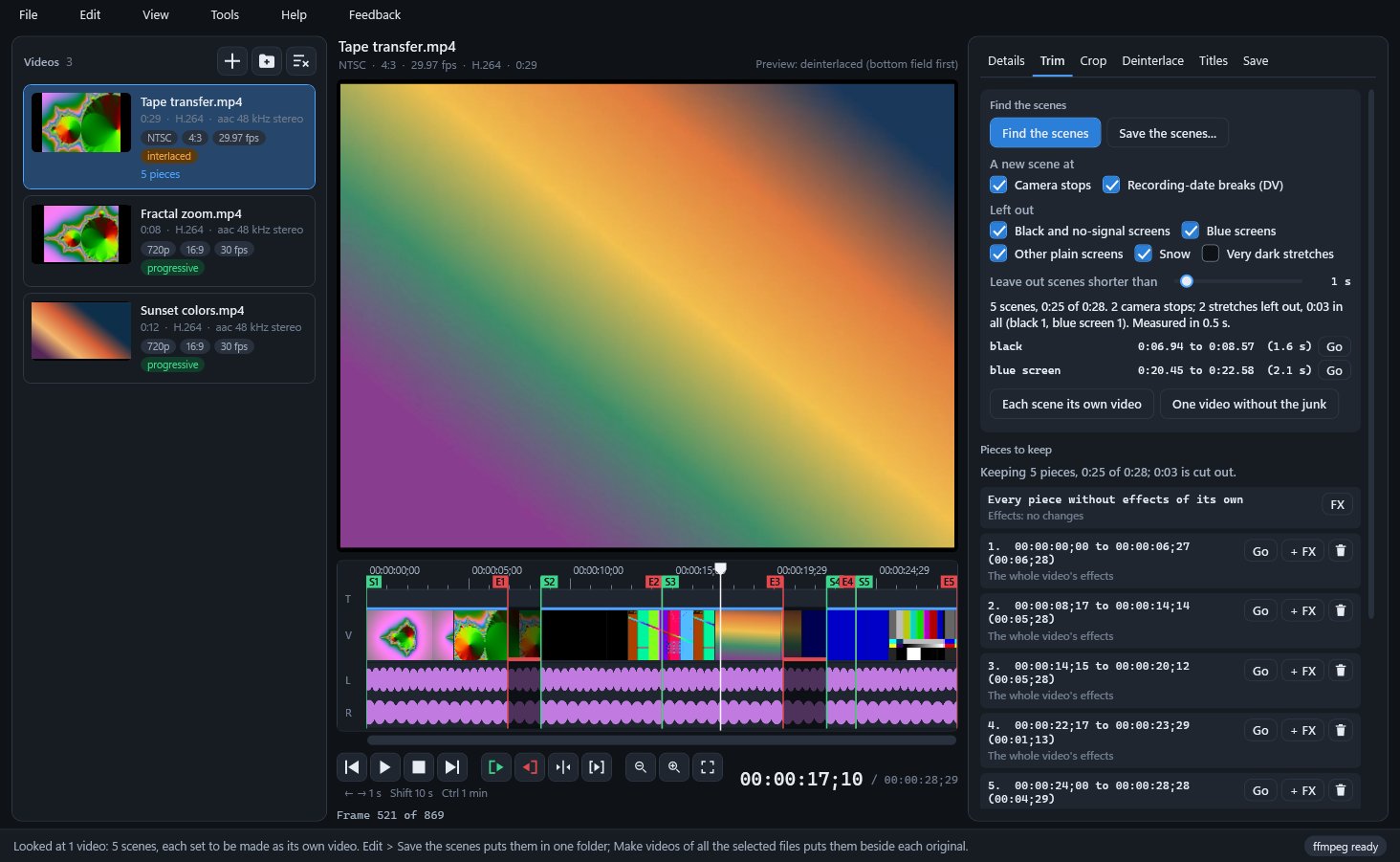
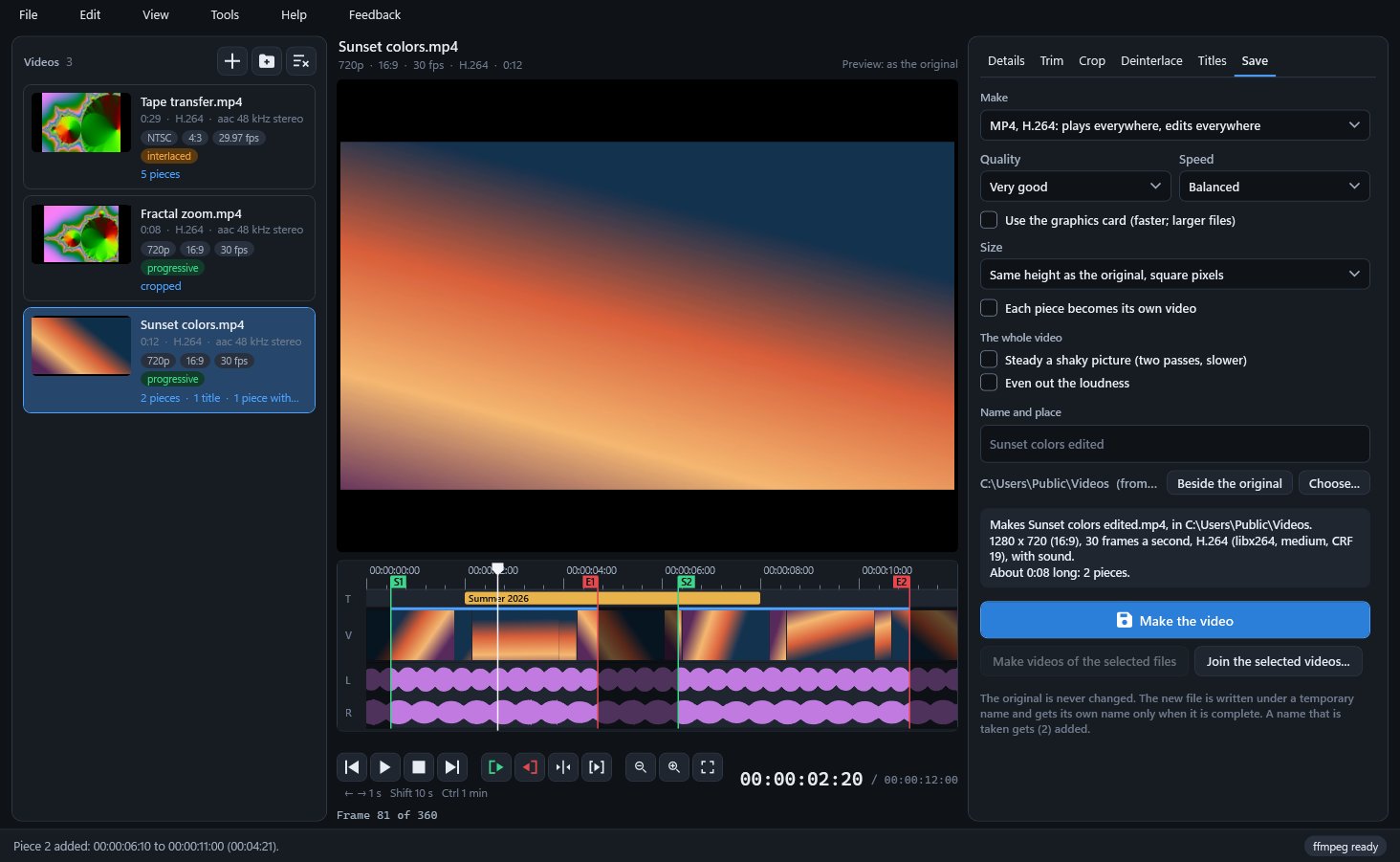
Trims, crops, deinterlaces and titles your videos on the exact frame, then saves them as new files.
SiggySoft Video Editor makes new videos from tape transfers, camcorder clips and phone videos, and never changes the originals. It keeps only the parts you mark, each cut on the exact frame you chose. It also turns the half-pictures of tape video into whole frames, crops away black bars, stands sideways phone videos upright, and adds titles on cards or over the picture. Find the scenes splits a tape transfer at every camera stop and leaves out black, blue screens and snow. The result is saved as MP4 (H.264, HEVC or AV1), MOV (ProRes), lossless MKV (FFV1) or the original's own format.
Mark each part to keep with Trim start and Trim end on a timeline of small pictures and sound waveforms. Every cut lands on the frame you marked, and DV pieces can be copied without re-encoding.
Find the scenes measures every frame, starts a new piece at each camera stop, and leaves out black, blue screens and snow. Save the scenes then writes each scene to a folder as its own file: name - scene 01.mp4, name - scene 02.mp4.
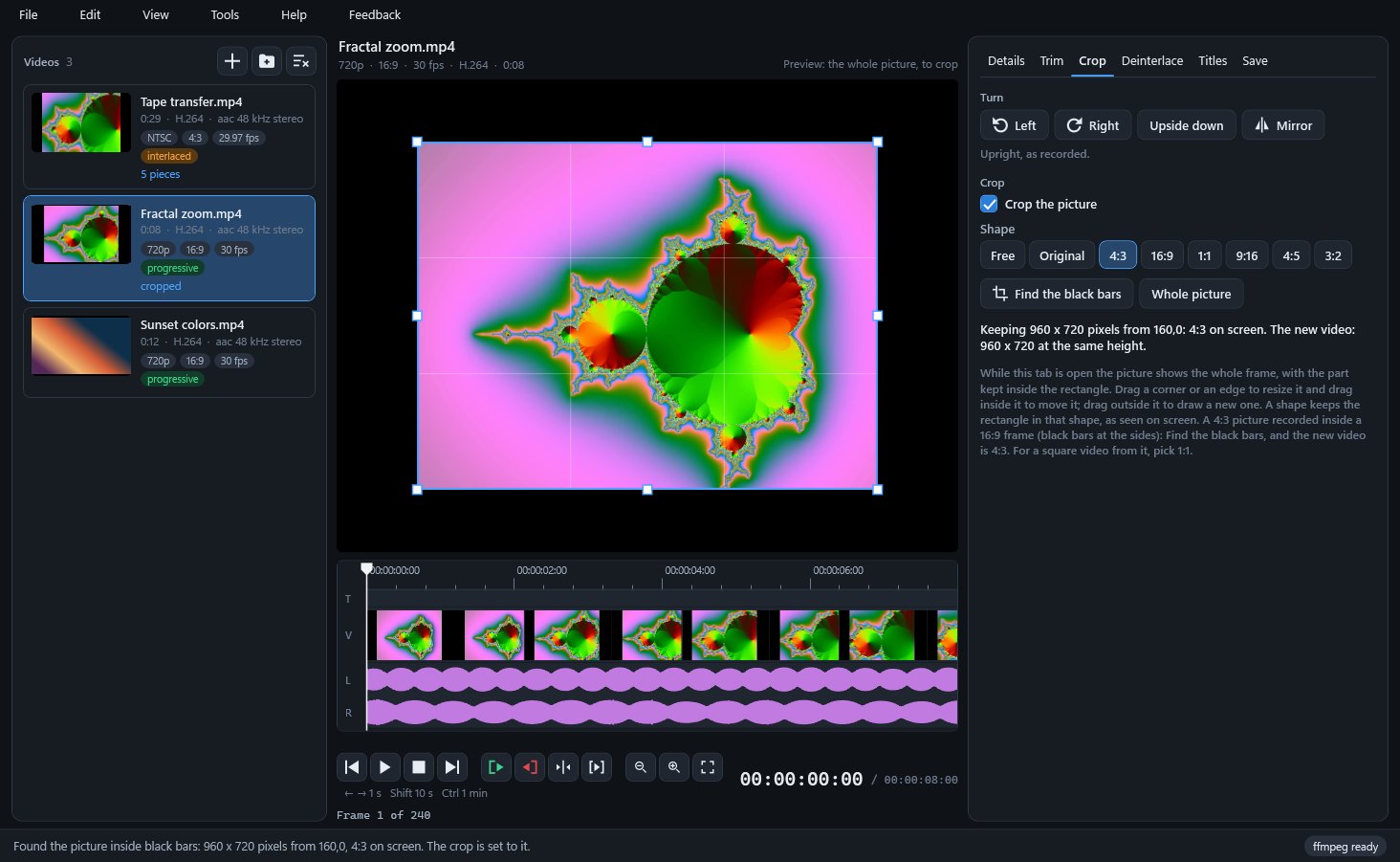
Interlaced tape and camcorder video becomes whole frames, 59.94 a second from NTSC or 50 from PAL, so movement shows no comb lines. Find the black bars crops a 4:3 picture out of a 16:9 frame with one button.
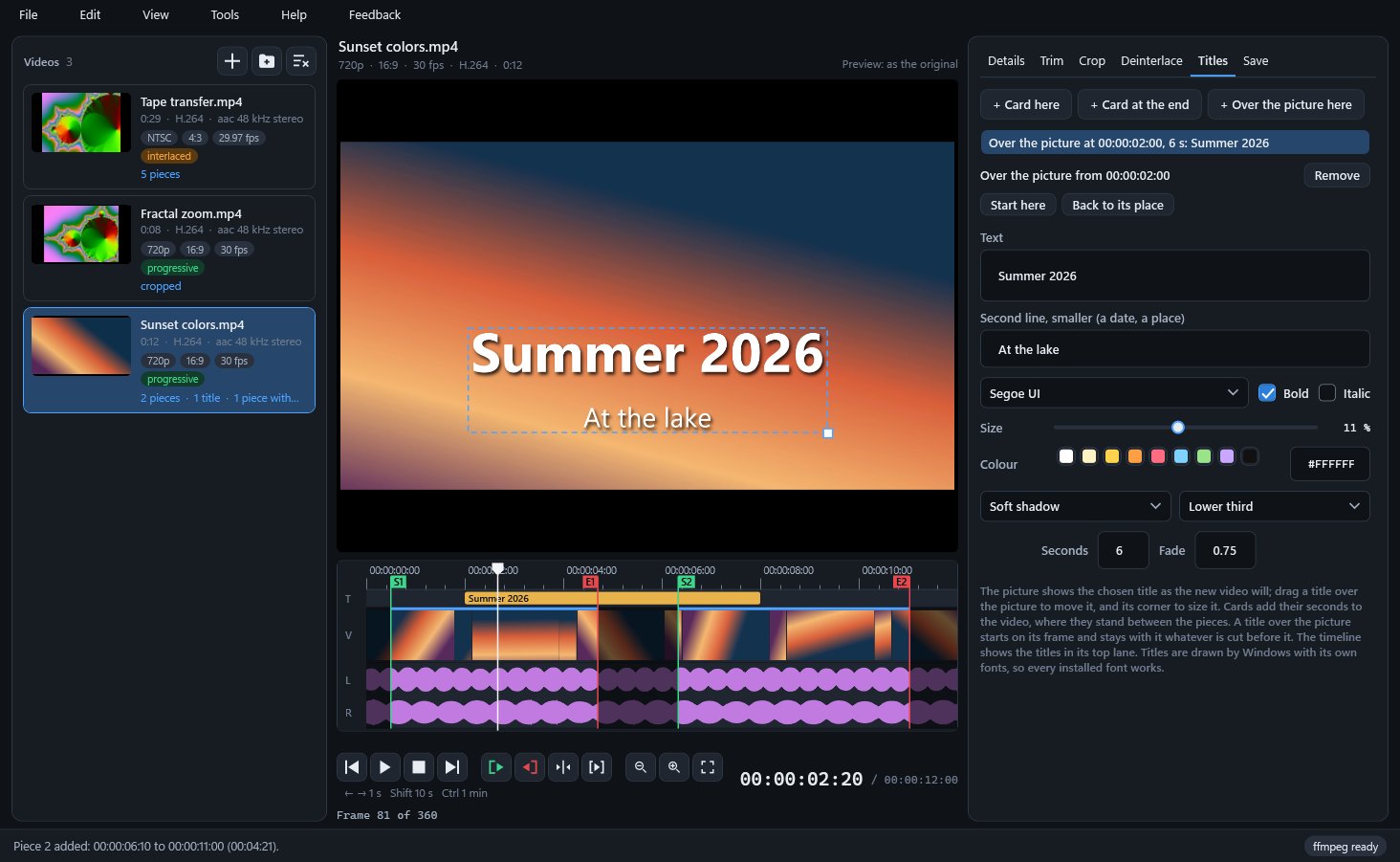
Put a title card between pieces, or text over the picture in any font installed in Windows. Each piece can have its own brightness, contrast, colour, noise reduction, fades and volume, kept as presets for other videos.
Joining is free and takes your e-mail address only. Already a member? Sign in and the download is here.
Click a picture to see it full size.
| Part | What it does |
|---|---|
| Video list | Drop files or folders here; each video shows a small picture and badges for NTSC or PAL, its shape, its frame rate and whether it is interlaced. |
| Timeline | A ruler in hours, minutes, seconds and frames, a lane for titles, a strip of small pictures and the sound's waveform, with green and red markers around each piece you keep. |
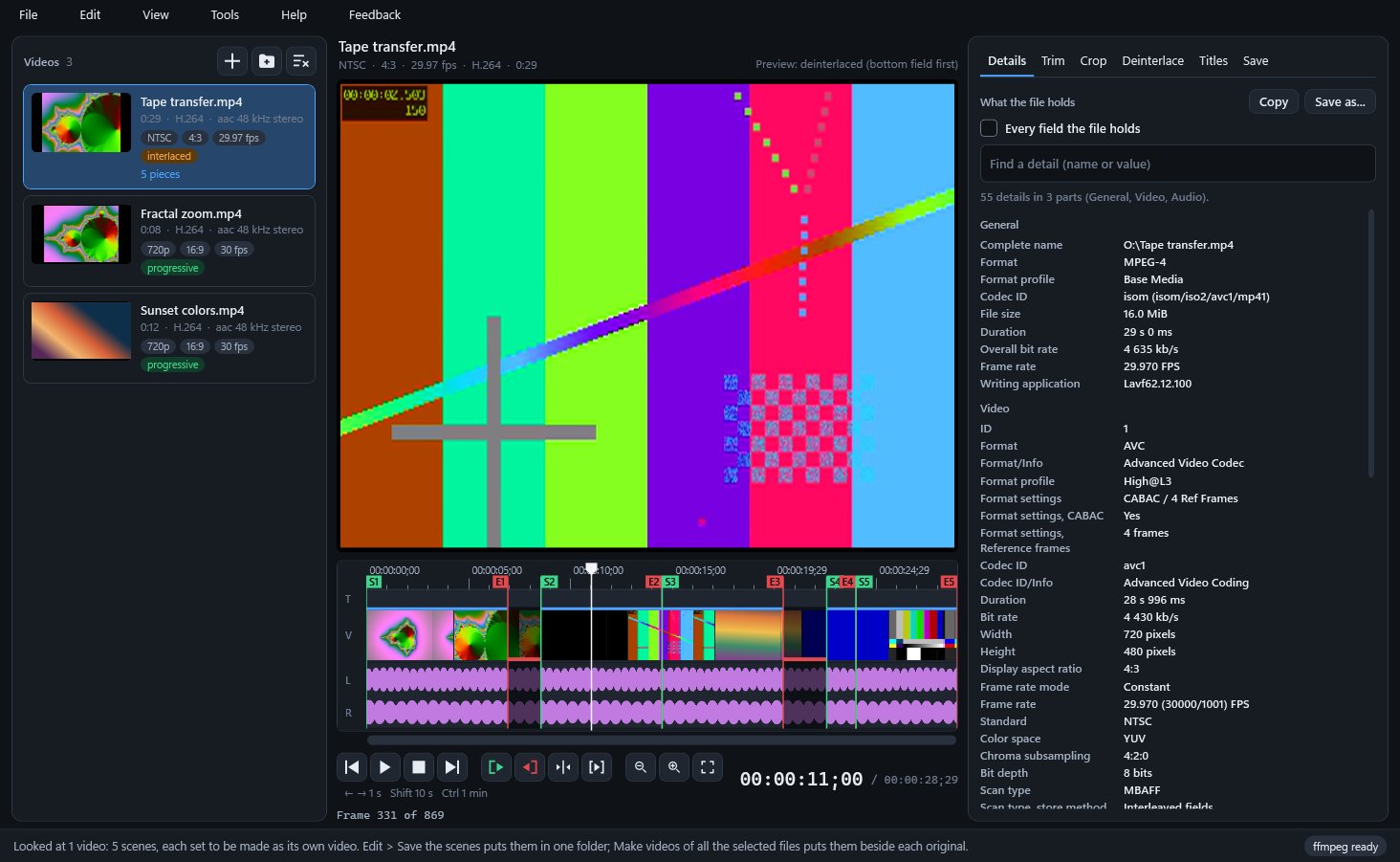
| Details tab | What the file says about itself, from its encoder settings to a DV tape's recording date, to search, copy, or save as text, a web page, JSON or XML. |
| Trim tab | Find the scenes, the pieces to keep, and the effects of each piece (+ FX, FX, - FX) with presets. |
| Crop tab | Turn a quarter or half turn, mirror, crop to a shape (4:3, 16:9, 1:1, 9:16, 4:5, 3:2), or Find the black bars. |
| Deinterlace tab | What the interlace detector found in the pictures, and the choice of deinterlacer, frame rate and field order. |
| Titles tab | Cards between the pieces and titles over the picture: text, a smaller second line, font, size, colour, style, place, length and fade. |
| Save tab | The kind of file, quality, speed, size, name and folder; steadying and even loudness for the whole video; a summary of what will be made, then Make the video. |
| New files | Each video being made, one at a time in the background, with its progress and time left; a finished one offers Play, Show and Add to the list. |
| Setup check | Lists what the editor needs on this PC, installs FFmpeg when you agree, and says whether .NET, Windows and the editor are up to date. |
To check the download, run Get-FileHash SiggySoftVideoEditor-1.7.3-Setup.exe in PowerShell and compare the result with the SHA-256 above.
The installed editor checks www.middlesiggy.com for a new version at every start (Settings > Updates turns this off) and reads Microsoft's 7 KB list of .NET releases at most once a day, sending nothing about the PC. FFmpeg and the optional deinterlacer download only after you agree in the setup check. A Feedback report leaves the PC only when you press Send; the editor sends no usage counts and no crash reports. See the site's privacy policy.
What the recent versions added, newest first. The full list is in the manual.
Version 1.7.3 · 2026-10-26
Version 1.7.2 · 2026-10-08
Version 1.7.1 · 2026-10-07
Version 1.7.0 · 2026-10-07
Version 1.6.4 · 2026-10-07
Version 1.6.0 · 2026-10-06
The program's Help menu opens the manual. To report a problem or suggest an idea, use the Feedback menu in the program: you see everything before it is sent. Or write through the contact page.