SiggySoft Video Compare

Two versions of one video in one picture, in step, to see what an upscaler or deinterlacer changed.

A free Windows program from SiggySoft LLC · version 1.4.1 · all programs

What it does

SiggySoft Video Compare opens two copies of the same video and shows them in one picture, in step: a tape capture and its upscaled copy, a file before and after deinterlacing, or two encodes of one master. A line follows the mouse across the picture, and the difference view lights up every pixel that changed. The smaller video is enlarged with nearest neighbour unless you choose otherwise, so an upscaler is judged against the pixels the original really holds, not against a second, smoothed enlargement. It is for anyone checking an upscale, a deinterlaced copy or a re-encode against its original, and it never changes the files it opens.

The honest baseline

The smaller video is enlarged with nearest neighbour, so each original pixel becomes a block and nothing is invented. Bilinear, bicubic and Lanczos can be chosen instead, and the line under the choice says how each side reached the shared canvas.

In step, picture by picture

Pictures are matched by their timestamps, so a 29.97 capture lines up with its 59.94 deinterlaced copy without either being converted, and one step back lands on the exact picture on any codec. The offset finder (O) works out the time shift between two files from their pictures.

Scores and scopes

PSNR, SSIM and VMAF for the two pictures on screen, or for a stretch of 1 second to 1 minute with the mean and the lowest moment of each score. A histogram, vectorscope and waveform show both sides side by side.

Several copies, one original

Add more right videos and switch between them with Tab at the same moment; each keeps its own time shift and label. Two upscalers or two deinterlacers can be ranked against the same original this way.

Get SiggySoft Video Compare

  • Windows 10 or 11, 64-bit
  • The .NET 10 Desktop Runtime; Setup installs it when it is missing
  • A graphics adapter with Direct3D 10 or 11; without a graphics driver, Windows draws the picture itself, slowly
  • The FFmpeg libraries, an LGPL build: 77 MB, downloaded once by the setup check after you agree
  • No administrator rights: Setup installs the program for the Windows user signed in
  • Free for Team Siggy members; joining is free
Join Team Siggy to download

Joining is free and takes your e-mail address only. Already a member? Sign in and the download is here.

Version 1.4.1 · SiggySoftVideoCompare-1.4.1-Setup.exe · 11.9 MB
SHA-256 58ddb96c5d335b3d2948cccf94fc57ad8ed39ef5c7bde4d151287044c1bdd588

What it looks like

Click a picture to see it full size.
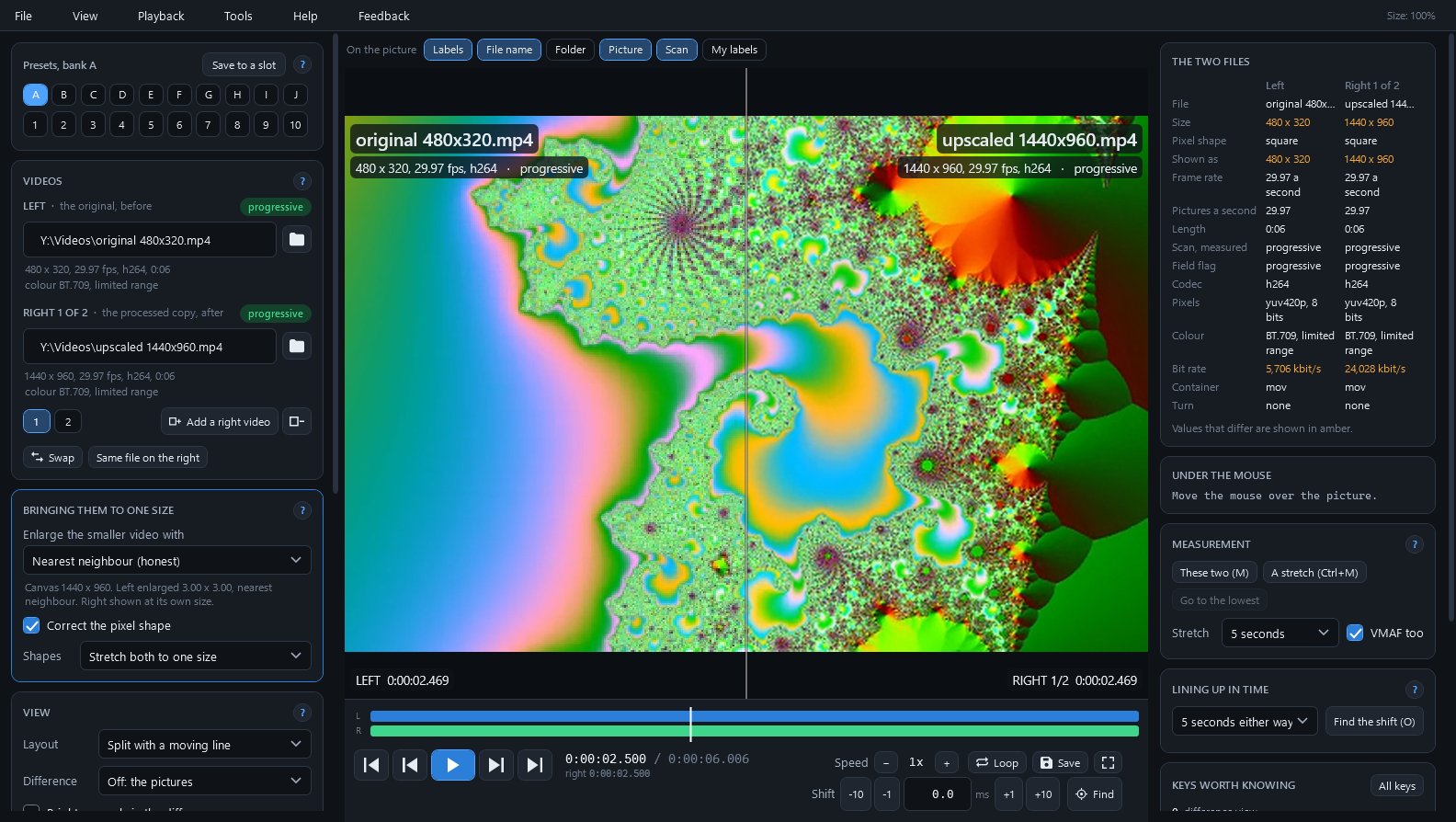
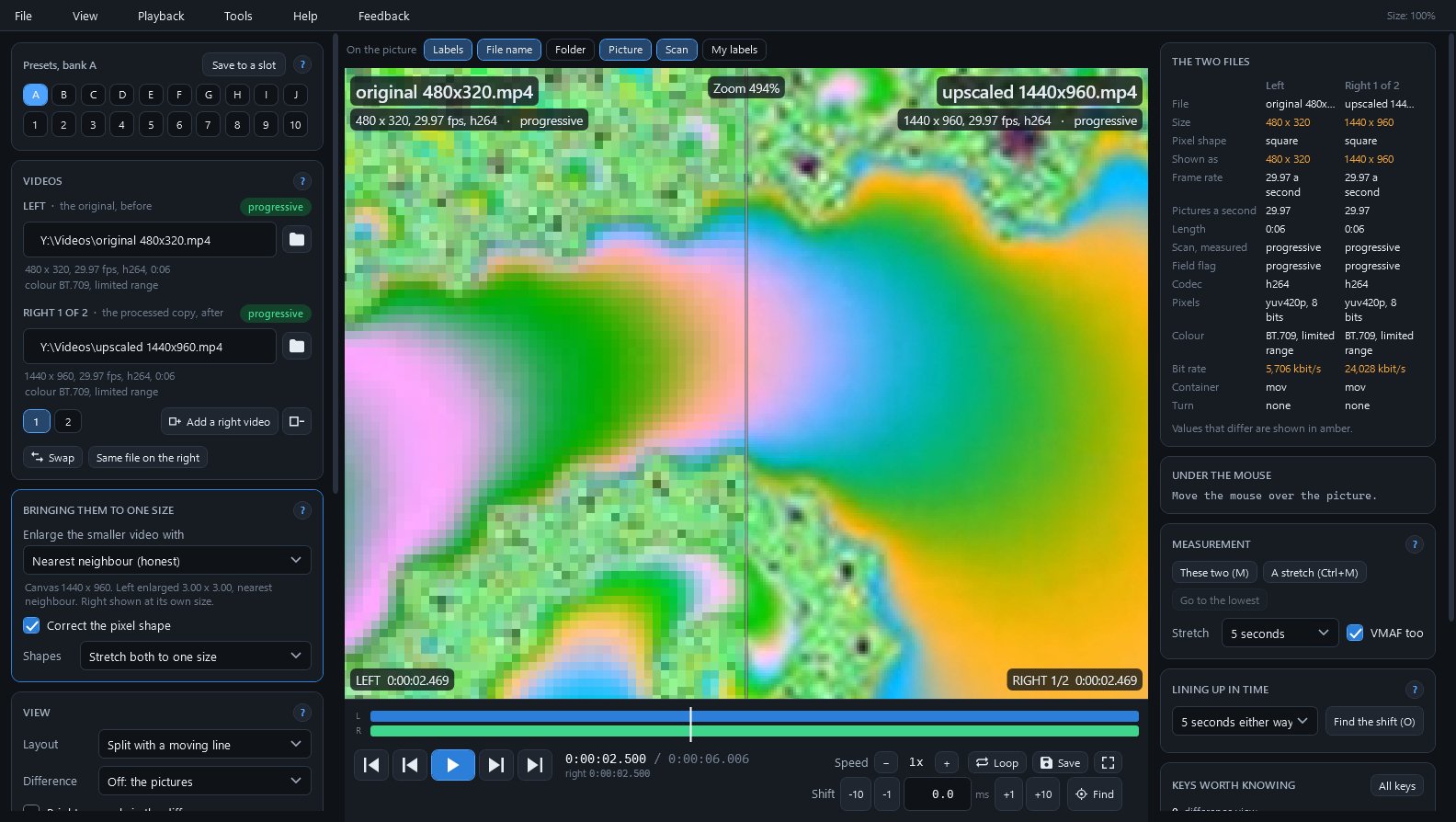
Split view of a 480 x 320 test clip and its 1440 x 960 upscale, with both files' details on the right
Zoomed to 494 percent: the original's pixels as blocks on the left, the upscale on the right
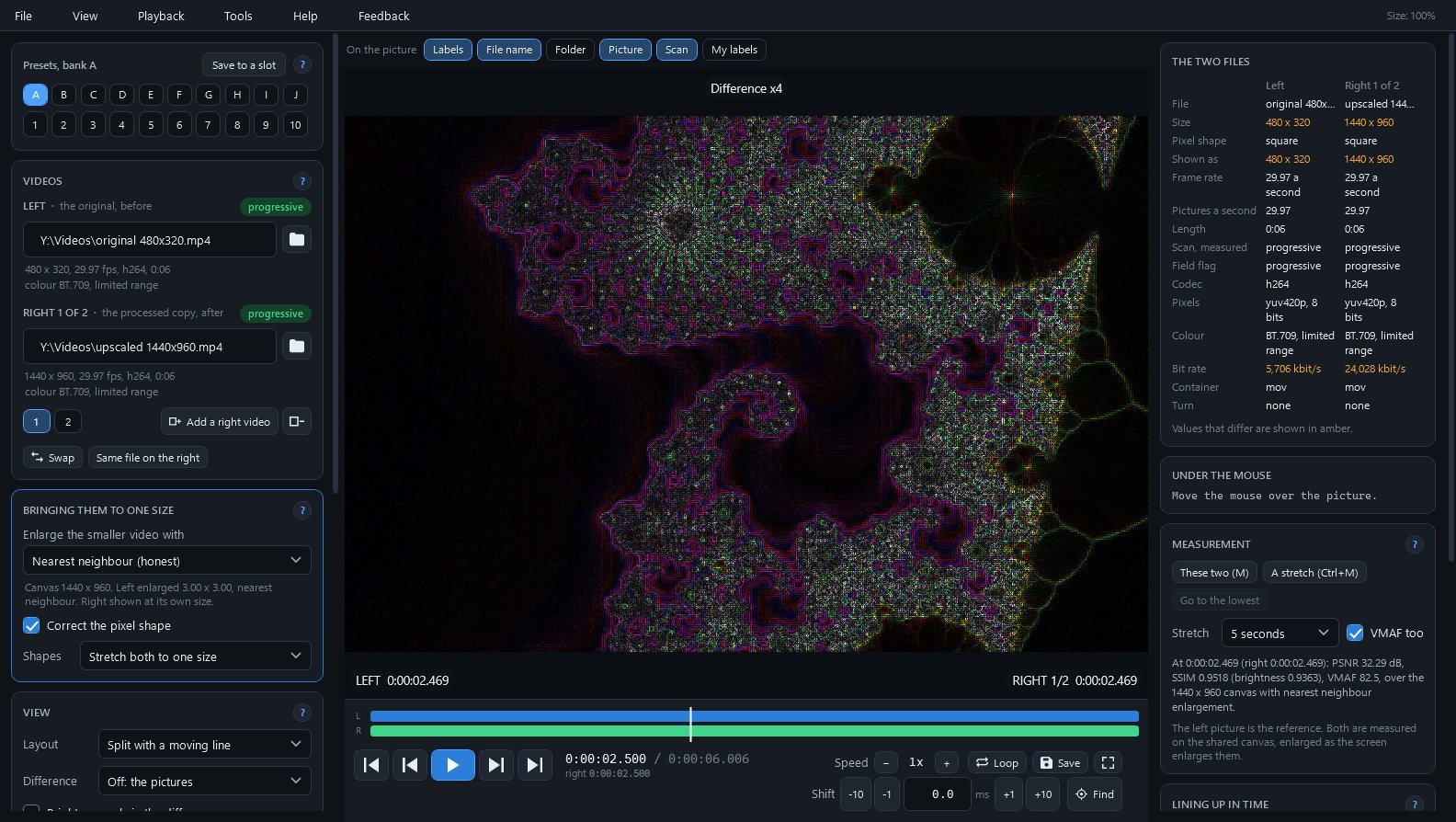
Difference x4 view, with PSNR, SSIM and VMAF of the pair on screen
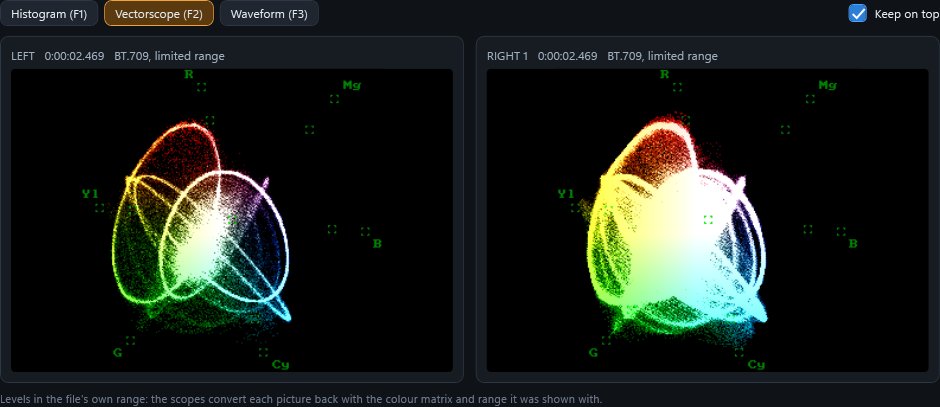
The vectorscope of both sides in the scopes window

What's in the window

PartWhat it does
Presets, banks A to JA hundred preset slots, ten banks of ten, each holding both files and every choice, so a whole comparison comes back in one click.
VideosThe original on the left and the processed copy on the right, each with a badge that says interlaced or progressive as measured from its pictures.
Bringing them to one sizeHow the smaller video is enlarged, pixel-shape correction for DV and DVD, and a line that says what was done to each side.
The pictureSplit with a moving line, side by side, one above the other, or the difference (plain, times 4 or signed), with zoom from 50 to 800 percent, a magnifier and a crop.
Labels on the pictureSwitches above the picture for each side's file name, folder, picture size and frame rate, measured scan type, or names you type.
Timeline and transport barBoth files drawn to scale with the time shift as an offset, and play, step, loop, speed from a tenth to 8 times, Save and full screen.
The two filesSize, pixel shape, frame rate, scan, codec, colour, bit rate and container of both files side by side, with values that differ in amber.
Measurement and lining up in timeThe PSNR, SSIM and VMAF results, Go to the lowest, and the offset finder with Undo.
Scopes windowHistogram (F1), vectorscope (F2) or waveform (F3) of both sides, following the picture as it plays or steps.
Field view (G)An interlaced side shown as its fields: each field in turn, the top field only or the bottom field only, to check a field order or judge a deinterlacer.

Installing it

  1. Download the installer (SiggySoftVideoCompare-1.4.1-Setup.exe) from the box above. The installer is not signed yet, so the browser may say the file is not commonly downloaded: choose Keep.
  2. Open it. Windows may say it protected your PC: click More info, then Run anyway.
  3. It installs for your Windows account without administrator rights, starts the program, and puts a shortcut on the desktop and in the Start menu. If the PC lacks the .NET runtime the program needs, the installer downloads it from Microsoft first.
  4. New versions come from this site. When the program starts it looks for one and downloads it in the background; a notice under the menu says when it is ready, and it installs the next time you start the program (or at once from Help, Check for updates).
  5. To remove it: Windows Settings, Apps, Installed apps. Your settings and your own files stay.

To check the download, run Get-FileHash SiggySoftVideoCompare-1.4.1-Setup.exe in PowerShell and compare the result with the SHA-256 above.

Tips

  • Put the original on the left. The left video sets the time, and it is the reference the scores measure the right one against.
  • Line the two up before trusting a score. In the manual's measurements, one picture out of step took a test stretch to VMAF 20.2, below the 53.4 of the worst encode tested (H.264 at CRF 35).
  • VMAF does not see colour and rewards sharpening: a copy with every colour turned 20 degrees kept VMAF 99.9, and a sharpened copy scored 100.0. Check colour with the vectorscope or PSNR.
  • L locks the split line so the mouse can point at things, and 3 hides the text on the picture except the labels, for a clean shot when the screen is filmed.
  • Two files open from the command line: "SiggySoft Video Compare.exe" before.mp4 after.mp4.

Privacy

Video Compare sends nothing in the background: no usage counts and no crash reports. It goes online to download the FFmpeg libraries (77 MB, once, from an open-source project's public builds, checked against a pinned SHA-256) after you agree, to look for a new version on www.middlesiggy.com at each start (Settings turns this off), to read the 7 KB list of .NET releases at most once a day (also switchable), and to send a Feedback report to www.siggysoft.org only when you press Send. See the site's privacy policy.

Version history

What the recent versions added, newest first. The full list is in the manual.

Version 1.4.1 · 2026-10-26

  • Updates come from www.middlesiggy.com
  • Fixed: a label on the picture said measuring... for good on a video opened before
  • The manual is written for anyone who downloads the program from this site; Feedback reports go to www.siggysoft.org

Version 1.4.0 · 2026-10-14

  • A file dropped on the picture goes to the half it lands on; before, with both sides filled, a file dropped for the right replaced the left one.
  • The labels on the picture come from the files: the file name, and under it the picture size, frame rate, codec and the scan type measured from the pictures.
  • Switches above the picture choose what the labels show: file name, folder, picture, scan and your own typed labels.

Version 1.3.0 · 2026-10-12

  • A hundred preset slots: ten banks, A to J, of ten slots each.
  • Presets saved by earlier versions stay where they were, in bank A.

Version 1.2.0 · 2026-10-06

  • A Feedback menu to report a problem, suggest a feature, ask a question or say thanks; a report goes to www.middlesiggy.com only when you press Send.
  • Show exactly what will be sent displays the whole report first, and a report saved while the site cannot be reached goes at the next start.

Version 1.1.1 · 2026-10-06

  • New manual chapters on the PSNR, SSIM and VMAF scores and on the scopes, with measurements of two tape stretches changed in eleven known ways.
  • Pictures whose start times differ by up to 1.5 ms are shown together; MKV and WebM files round times to whole milliseconds, and such pictures were shown one picture apart.
  • A step forward waits up to 2 seconds for a picture that is still being decoded, so a busy PC no longer skips one.

Version 1.1.0 · 2026-10-06

  • Several right videos against one original, switched with Tab at the same moment.
  • PSNR, SSIM and VMAF scores, the offset finder, the field view and the scopes.
  • L locks the split line, and F11 gives the picture the whole screen.
  • DV and DVD pictures with narrow pixels are shown taller (720 x 540) instead of narrower, so no column is dropped.

Help and feedback

The program's Help menu opens the manual. To report a problem or suggest an idea, use the Feedback menu in the program: you see everything before it is sent. Or write through the contact page.

All SiggySoft programs