SiggySoft DV Capture

Copies MiniDV and Digital8 tapes over FireWire, one file per scene, named by the date it was filmed.

A free Windows program from SiggySoft LLC · version 1.17.2 · all programs

What it does

SiggySoft DV Capture copies MiniDV and Digital8 tapes from a camcorder or VCR to the PC over FireWire. The camcorder wrote the date and time into every frame, so the program starts a new file wherever the camera was stopped and started, and names each file after the tape and the moment its scene was filmed. Picture and sound are copied as they come off the tape, with nothing compressed again. Afterwards it makes deinterlaced MP4 copies for phones and computers, and its clip list shows tape damage and dropped frames. A one-hour tape takes one hour and about 13 GB.

One file per scene

Where the recording date jumps between two frames, a new AVI file starts, named after the tape and the date and time the scene was filmed. Sorting by name puts the scenes in filming order.

Copied as on the tape

DV video and its sound are written as the camcorder sends them, never compressed again. Files close before 2,048 MB (about 9 to 10 minutes), at a scene change in the last 30 seconds when there is one.

Deinterlaced MP4 copies

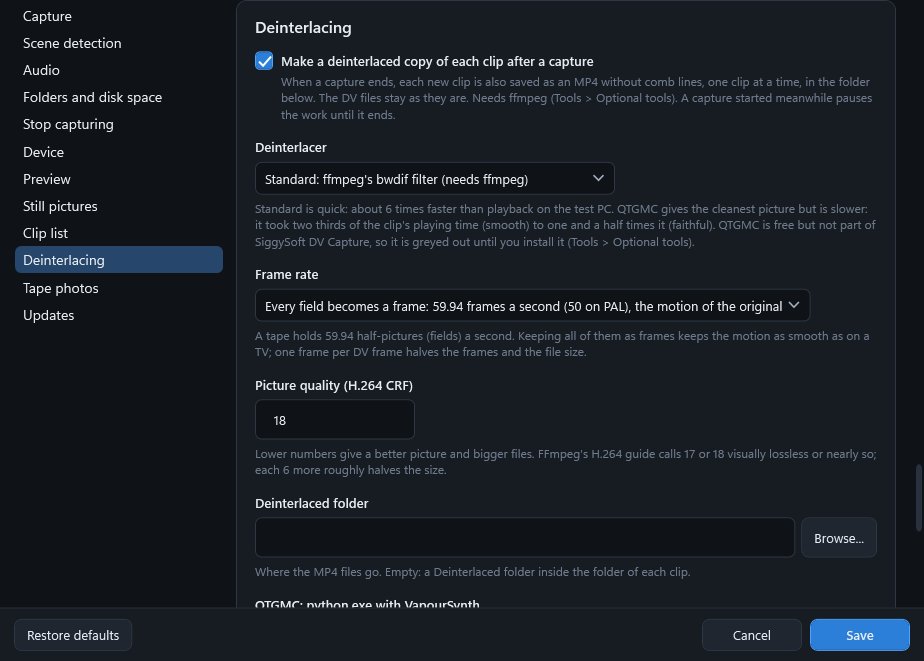
On request, or after every capture when that is ticked, an H.264 MP4 without comb lines at 59.94 frames a second. On the test PC the standard deinterlacer ran at 6.2 times playback speed, about 10 minutes for an hour of tape.

Tape damage counted

Each clip counts the frames the camcorder could not read and the frames the PC missed. The damage window shows a picture of the worst frame at each damaged spot.

Get SiggySoft DV Capture

  • Windows 10 or 11, 64-bit
  • Microsoft .NET 8 Desktop Runtime or newer (Setup.exe installs it when it is missing)
  • A FireWire port (IEEE 1394 or i.LINK) and a FireWire cable that fits the camcorder
  • A MiniDV or Digital8 camcorder or VCR in playback mode, which Windows lists as Microsoft DV Camera and VCR
  • Disk space: DV takes 3.6 MB a second, about 13 GB for each hour of tape
  • Optional: ffmpeg (about 115 MB, installed from Tools > Setup check) for deinterlaced copies, the interlaced badges and video files that are not DV
  • Optional: QTGMC, which needs Python 3.12 or newer, for the two slower deinterlacers that keep edges cleaner
  • Optional: 224 MB for the model that cuts the tape out of its photos
  • Free for Team Siggy members; joining is free
Join Team Siggy to download

Joining is free and takes your e-mail address only. Already a member? Sign in and the download is here.

Version 1.17.2 · SiggySoftDvCapture-1.17.2-Setup.exe · 17.2 MB
SHA-256 9301c22f8cc577f61a4fdc740a6f10d5b0772dbd06eda718c60791a63ada238d

What it looks like

Click a picture to see it full size.
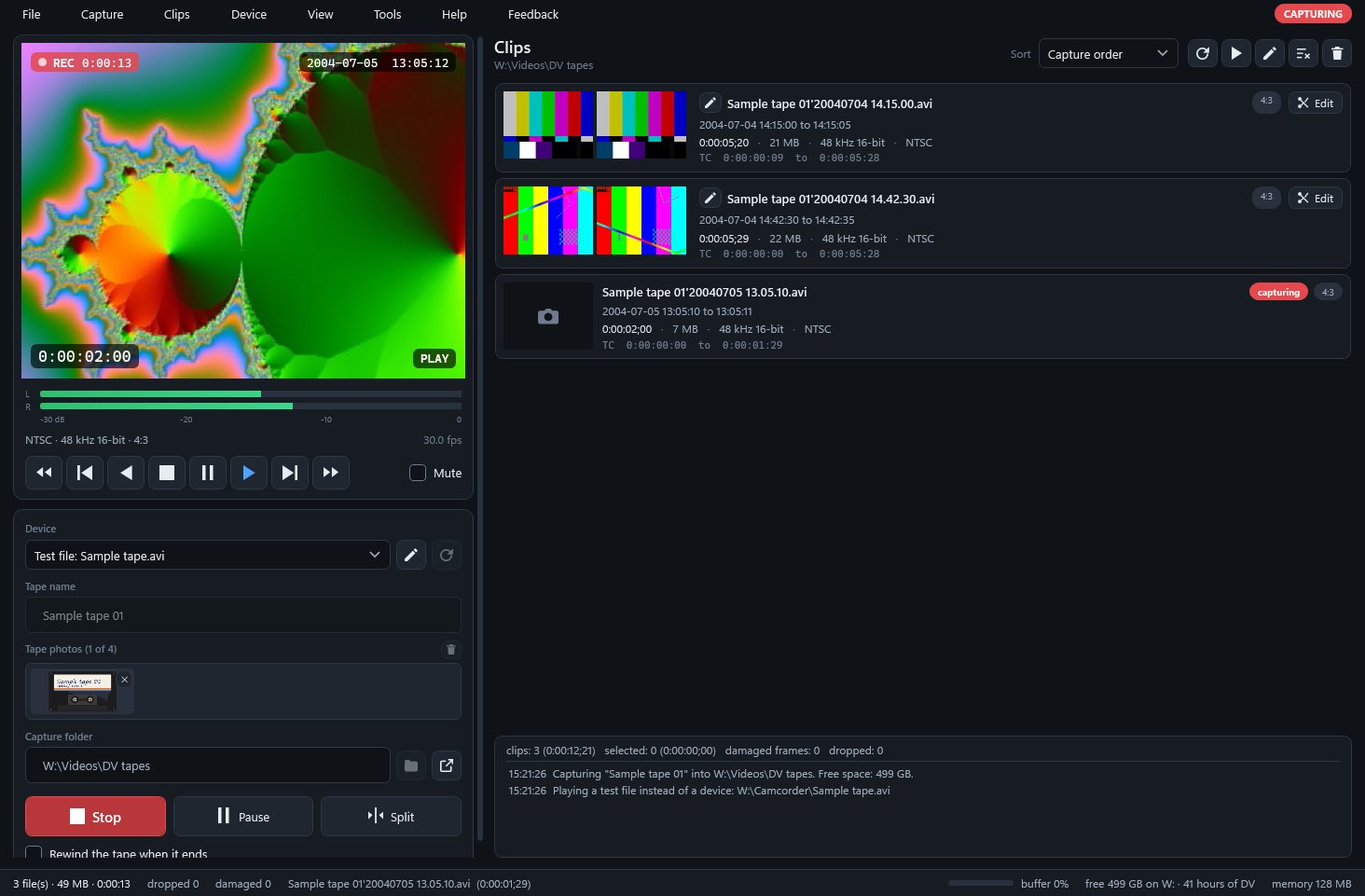
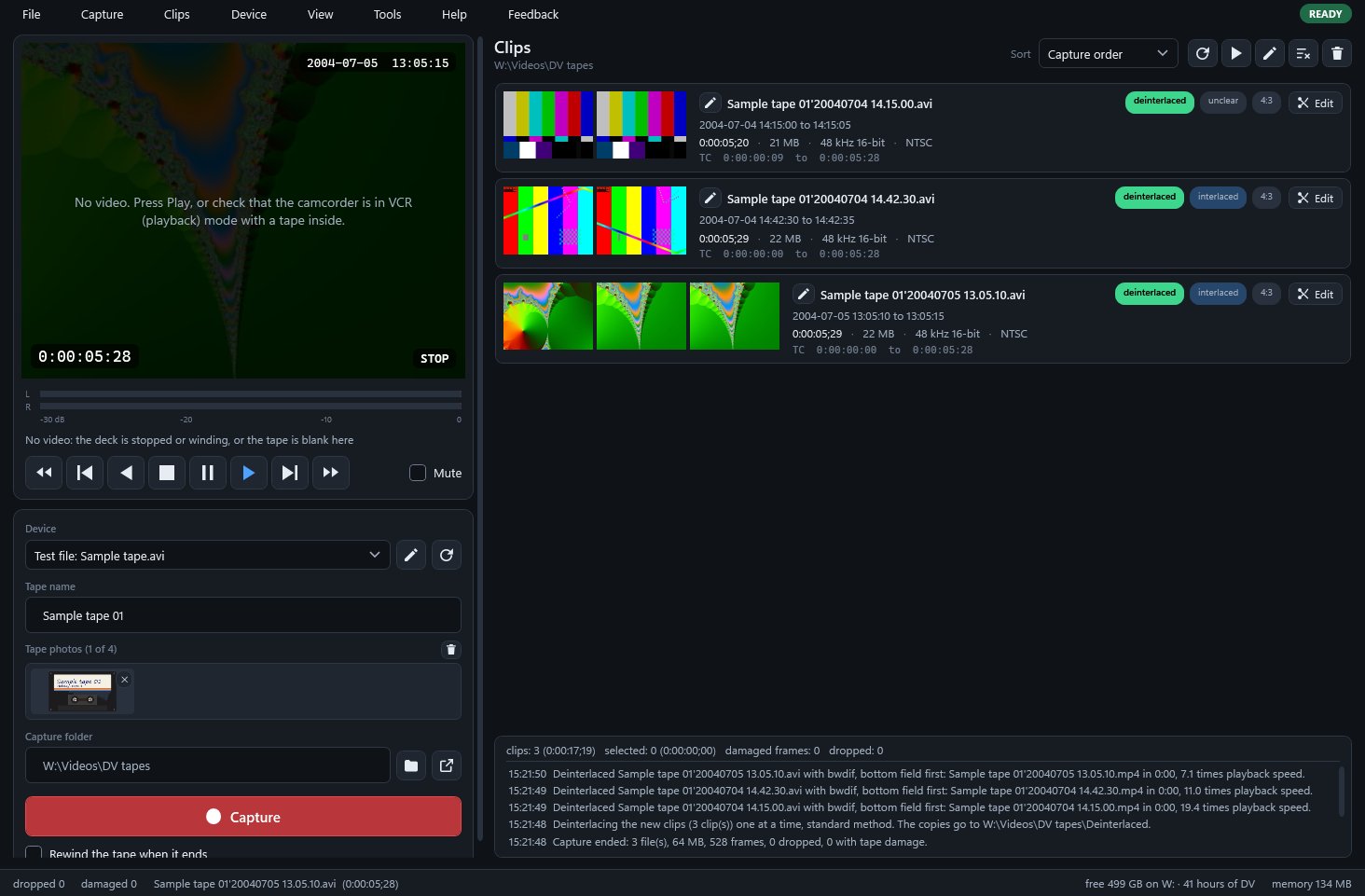
Capturing the third scene of a sample tape, with its date, timecode and REC time
After the capture: one file per scene, each with a deinterlaced MP4 copy
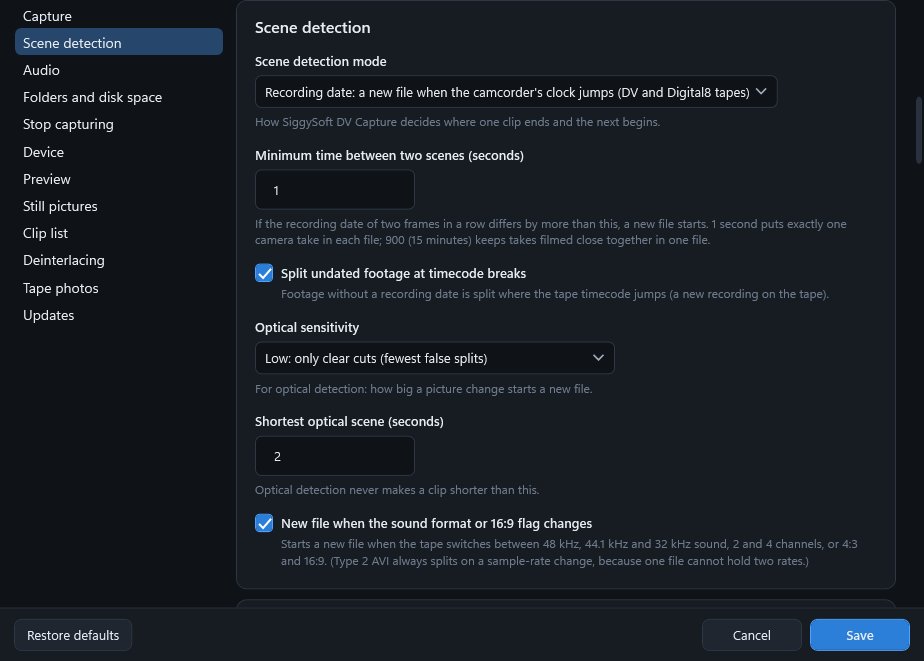
Settings > Scene detection
Settings > Deinterlacing
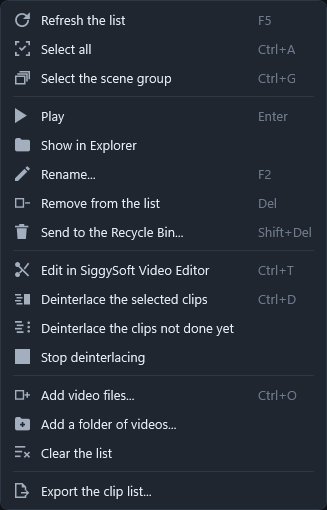
The Clips menu
The Clips menu

What's in the window

PartWhat it does
MonitorThe picture from the tape with the date and time it was filmed, the tape timecode, what the deck is doing and, while capturing, a red REC mark.
Deck buttonsRewind, frame back, play backwards, stop, pause, play, frame forward and fast forward, for camcorders that take commands over FireWire.
Device, tape name and tape photosPick the camcorder, type the tape's name, and drop up to four photos of the tape and its case, which can be cut out from their background on the PC.
Capture, Pause and SplitCapture plays the tape and writes the files; Pause stops the tape, and resuming starts a new file; Split starts the next file at once. Rewind the tape when it ends is a tick box under them.
Clip listFive pictures per clip, when it was filmed, length, size, timecode, and badges for interlaced or progressive, tape damage and a deinterlaced copy.
Messages and status barWhat happened, newest first; then files, dropped and damaged frames, the RAM buffer, and free space in hours of DV.
Edit buttonOpens a clip in SiggySoft Video Editor to trim, split or join it, when the editor is installed.
SettingsTwelve groups, from scene detection and stop rules to still pictures, deinterlacing, tape photos and updates.
ToolsThe setup check with its installs, Optional tools for ffmpeg and QTGMC, and a hard disk speed test that writes 5 minutes of DV.
Capture > TimersVCR-style timers: a start time and a number of minutes, or a stop time.

Installing it

  1. Download the installer (SiggySoftDvCapture-1.17.2-Setup.exe) from the box above. The installer is not signed yet, so the browser may say the file is not commonly downloaded: choose Keep.
  2. Open it. Windows may say it protected your PC: click More info, then Run anyway.
  3. It installs for your Windows account without administrator rights, starts the program, and puts a shortcut on the desktop and in the Start menu. If the PC lacks the .NET runtime the program needs, the installer downloads it from Microsoft first.
  4. New versions come from this site. When the program starts it looks for one and downloads it in the background; a notice under the menu says when it is ready, and it installs the next time you start the program (or at once from Help, Check for updates).
  5. To remove it: Windows Settings, Apps, Installed apps. Your settings and your own files stay.

To check the download, run Get-FileHash SiggySoftDvCapture-1.17.2-Setup.exe in PowerShell and compare the result with the SHA-256 above.

Tips

  • Close Windows Camera, video-call programs and any other capture program first: only one program can use the camcorder at a time.
  • A blank stretch longer than 30 seconds in the middle of a tape ends the capture there. Raise the time in Settings > Stop capturing for that tape.
  • To keep takes filmed close together in one file, set Settings > Scene detection > Minimum time between two scenes to 900 seconds (15 minutes).
  • Tapes recorded through an analog-to-DV converter carry no recording date. Use the Optical scene detection mode for them, and turn off device control.
  • Damage is on the tape, so capturing again usually gives the same result. Look at the damage window first, and clean the heads with a cleaning cassette when many clips show damage.

Privacy

An installed copy asks www.middlesiggy.com for a new version at every start, and once a day reads Microsoft's public list of .NET releases (7 KB); Settings > Updates turns either off, and the .NET check sends nothing about the PC. ffmpeg, the QTGMC packages and the 224 MB cut-out model are downloaded only when you press their button in Tools > Setup check and agree, and tape photos are cut out on the PC, never sent. A Feedback report leaves the PC only when you press Send; there are no usage counts and no crash reports. See the site's privacy policy.

Version history

What the recent versions added, newest first. The full list is in the manual.

Version 1.17.2 · 2026-10-26

  • When SiggySoft Video Editor is not installed, the Edit button says where its Setup comes from: www.middlesiggy.com

Version 1.17.1 · 2026-10-26

  • The manual is written for anyone who downloads the program from this site
  • Feedback reports go to www.siggysoft.org

Version 1.17.0 · 2026-10-07

  • Refresh the list (F5) reads the capture folder again and brings back the clips taken off the list.
  • The Edit button above the clip list is gone; each clip has its own.
  • Renaming a clip that another program has open waits up to 10 seconds instead of failing.

Version 1.16.0 · 2026-10-07

  • Trimming, splitting and joining moved to SiggySoft Video Editor; each clip's Edit button opens the clip there when the editor is installed.
  • A pen before each clip's name renames that file.
  • Fixed: a clip being deinterlaced when a capture started could drop out of the queue; it now goes back to the front.

Version 1.15.2 · 2026-10-06

  • The program's name and version show once, in the title bar, instead of again beside the menu.

Version 1.15.0 · 2026-10-06

  • Setup.exe installs the program for the signed-in user without administrator rights, and installs the .NET 8 Desktop Runtime when it is missing.
  • New versions download in the background and go in when the program closes, never during a capture.
  • Help > Check for updates, and Settings > Updates to turn the check at start off.

Help and feedback

The program's Help menu opens the manual. To report a problem or suggest an idea, use the Feedback menu in the program: you see everything before it is sent. Or write through the contact page.

All SiggySoft programs